
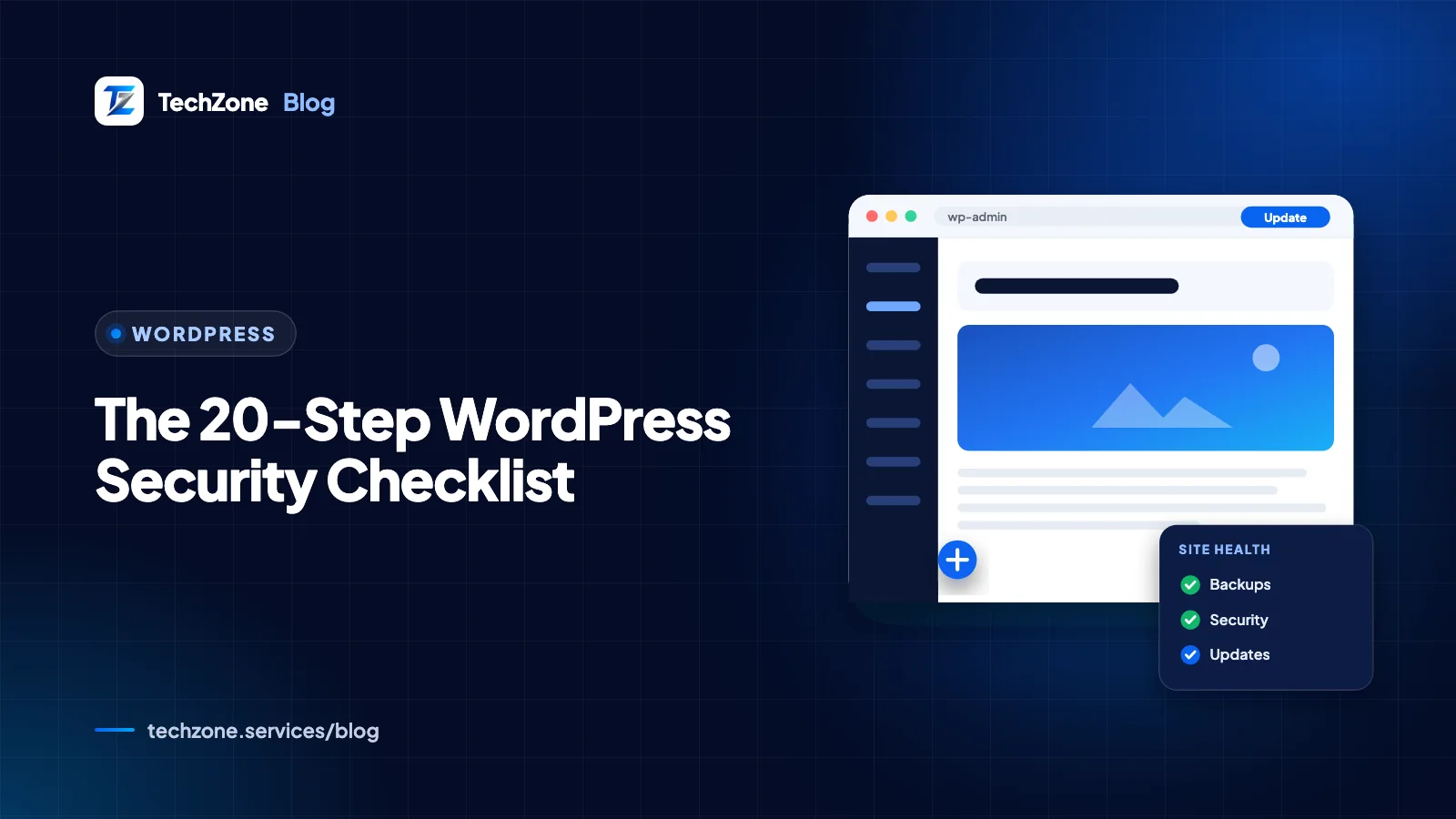
This WordPress security checklist gives you 20 steps in priority order, each with how to do it and the tool or setting that helps. Start at the top. WordPress’s own hardening guide says the most common attacks either exploit outdated software or guess passwords, so updates, two-factor login and plugin hygiene come before any server tweak.
2026 showed why the order matters. In June, attackers tampered with scripts served from the CDN behind the OptinMonster, TrustPulse and PushEngage plugins and used them to create rogue administrator accounts. In July, WordPress 7.0.2 fixed a core flaw chain that allowed unauthenticated remote code execution, and WordPress.org forced the update onto affected sites.
If your site is already compromised, follow our hacked WordPress recovery guide first. Routine updates, backups and checks live in our WordPress maintenance checklist; this article covers the security setup behind them.
Key takeaways
- The most common WordPress attacks exploit outdated software or guess passwords, so updates and login protection come before hardening tweaks.
- WordPress core has no built-in two-factor authentication; add it with a plugin for every administrator.
- The WordPress hardening guide says to delete plugins you don’t use, not just deactivate them.
- Keep automatic off-site backups and test a restore, because a backup you’ve never restored may not work.
- Up-to-date sites can still be hit through third-party scripts, so limit admin accounts and alert on every new one.
What does a WordPress security checklist need to cover?
It needs to cover four layers, in this order: the software you run, the accounts that can log in, the server and files, and your ability to detect and recover from an attack. The WordPress hardening guide names the two most common attacks: requests that exploit old plugins and software, and brute-force password guessing.
The steps below are tool-agnostic. Where a tool is named, it’s an example of a category, not the only option. Effort assumes an ordinary business site on shared or managed hosting.
How do you secure a WordPress site? Priority 1: steps 1 to 7
Do these first, ideally this week. They close the doors attackers try most often and cost little more than an afternoon.
| # | Step | How to do it | Tool or setting | Effort |
|---|---|---|---|---|
| 1 | Keep WordPress core current | Leave automatic minor updates on and apply security releases the day they ship | Dashboard > Updates | Low |
| 2 | Update plugins and themes | Turn on auto-updates for well-maintained plugins; update the rest weekly after a backup | Plugins screen, “Enable auto-updates” | Low |
| 3 | Delete unused plugins and themes | Remove anything deactivated or unused, including old page builders and demo themes | Plugins and Appearance > Themes | Low |
| 4 | Install only from reputable sources | Use the WordPress.org directory or the developer’s own site, check update history and support replies, and never install “nulled” copies of premium plugins | Plugin pages: last updated date and support forum | Low |
| 5 | Use strong, unique passwords | Generate long passwords for WordPress, hosting, SFTP and database accounts; never reuse them | A password manager and the WordPress strength meter | Low |
| 6 | Turn on two-factor authentication | Require it for every administrator and editor, with backup codes stored safely | Two Factor plugin, a security plugin or passkeys | Low |
| 7 | Limit administrator accounts | Give staff the lowest role that works; remove ex-staff and old agency logins; avoid the username “admin” | Users > All Users | Low |
Speed matters with updates. When WordPress 7.0.2 shipped in July 2026, Malwarebytes reported that exploitation of the flaw chain, nicknamed wp2shell, began within hours of the patch. A site that waits for a monthly update window is exposed for weeks.
Where plugins come from matters too. Since June 2026, every plugin and theme release on WordPress.org sits in a cooldown with an automated security review before sites receive it, and high-risk releases are blocked. Premium plugins downloaded elsewhere are outside that check, so buy from the developer directly and keep the license active.
Watch out
WordPress core does not include two-factor authentication. With the free Two Factor plugin, each user sets it up under Users > Your Profile > Two-Factor Options, choosing an authenticator app, email codes or backup codes. The plugin relies on each user to set it up, so check every administrator’s profile.
Priority 2: A WordPress hardening checklist for logins and code (steps 8 to 13)
Hardening limits the damage when something slips through. These steps take longer and some need help from your host or a WordPress developer, so schedule them within the month.
| # | Step | How to do it | Tool or setting | Effort |
|---|---|---|---|---|
| 8 | Rate-limit login attempts | Throttle at the firewall or web server first; a plugin is the fallback | WAF rule, server config or security plugin | Low |
| 9 | Decide on XML-RPC | Block xmlrpc.php if nothing uses it; restrict and rate-limit it if Jetpack or the mobile app needs it | Firewall or server rule | Low |
| 10 | Put a firewall in front of WordPress | Choose an edge firewall that filters traffic before your server, or a plugin firewall that filters inside WordPress | Cloudflare or Sucuri at the edge; Wordfence or Solid Security as plugins | Medium |
| 11 | Disable the dashboard file editor | Add DISALLOW_FILE_EDIT to wp-config.php so a stolen login can’t edit PHP files | wp-config.php | Low |
| 12 | Set correct file permissions | Directories 755, files 644, wp-config.php 400 or 440; ask your host if unsure | SFTP client, SSH or host file manager | Medium |
| 13 | Force HTTPS everywhere | Install a TLS certificate, set both addresses under Settings > General to https, and force HTTPS for admin | Host SSL tool and FORCE_SSL_ADMIN | Low |
The WordPress brute force guide prefers throttling at the edge or server, because a plugin still runs PHP for every blocked attempt. On XML-RPC, note that the xmlrpc_enabled filter only turns off methods that need a login; pingbacks keep working, so block the file at the server if you don’t use it.
Steps 11 and 13 are two lines in wp-config.php. Add them above the line that says to stop editing, and keep a copy of the original file:
// Example: security constants in wp-config.php
define( 'DISALLOW_FILE_EDIT', true );  // removes the theme and plugin file editors
define( 'FORCE_SSL_ADMIN', true );     // forces HTTPS for logins and the admin area

// Optional, only if a developer deploys all updates another way:
// define( 'DISALLOW_FILE_MODS', true ); // also blocks plugin installs and dashboard updates
DISALLOW_FILE_MODS is the stronger option: attackers who reach the dashboard often upload a malicious plugin, and this constant blocks plugin installation entirely. The trade-off is that you lose one-click updates, so use it only on sites where a developer applies updates through the host, WP-CLI or a deployment process.
Priority 3: How do you make sure you can recover? (steps 14 to 17)
Assume that one day something will get through. Recovery steps decide whether that day costs an hour or a week.
| # | Step | How to do it | Tool or setting | Effort |
|---|---|---|---|---|
| 14 | Take automatic off-site backups | Back up files and database together, weekly for small sites and daily for busy ones, with 3 to 5 copies in different places | Backup plugin, host backups plus cloud storage | Low |
| 15 | Test a restore | Restore a recent backup to a staging site every quarter and check pages, forms and logins | Staging site or local install | Medium |
| 16 | Choose secure hosting | Ask about account isolation, SFTP or SSH, current PHP, malware scanning and how fast they respond to incidents | Hosting plan and support | Medium |
| 17 | Protect wp-config.php and secrets | Use unique security keys, a dedicated database user, and never store API keys in public files or page code | wp-config.php, host panel | Low |
The WordPress backup guide recommends spreading copies across separate places, for example one on the server, one in cloud storage and one on a computer in your office. Keep at least one copy the website can’t reach, because malware that controls the site can delete backups stored inside it. On shared hosting, the hardening guide warns that a compromised neighbor can affect your site, so ask how accounts are isolated.
Priority 4: How do you monitor WordPress website security? (steps 18 to 20)
Monitoring shortens the time between a break-in and your response. Set these up once and they run in the background.
| # | Step | How to do it | Tool or setting | Effort |
|---|---|---|---|---|
| 18 | Keep an activity log | Record logins, new users, role changes and plugin installs, with an email alert for new administrators | WP Activity Log or Simple History | Low |
| 19 | Watch for vulnerabilities and malware | Get alerts when an installed plugin has a known flaw; scan files on the server, not only the dashboard | Vulnerability alerts from WPScan, Patchstack or Wordfence; host malware scanner; Search Console | Low |
| 20 | Review access and scripts quarterly | Audit users, hosting and SFTP accounts, API keys, and every third-party script your pages load | Users screen, host panel, tag manager | Medium |
For the quarterly review in step 20, work through this list:
- Users: any administrator you don’t recognize, and accounts for staff, freelancers or agencies who no longer work with you.
- Plugins: anything inactive, duplicated, or flagged in the WordPress.org directory as not tested with the latest 3 major releases of WordPress.
- Hosting: SFTP, control panel and database users, and who holds each password.
- Scripts: every third-party script your theme, plugins and tag manager load, with an owner who can say why it’s there.
- Keys: API keys for payments, email and forms; rotate any that a former contractor could see.
Verify your site in Google Search Console as part of step 19. Its Security issues report tells you if Google finds hacked content or malware, often before a customer notices.
What do 2026’s WordPress attacks mean for your checklist?
They show that no single step is enough. Each recent incident got past one layer and was caught, or would have been, by another.
| Incident | What happened | Steps that help |
|---|---|---|
| Vendor CDN supply-chain attack, June 2026 | Tampered OptinMonster, TrustPulse and PushEngage scripts ran in logged-in admins’ browsers, created rogue admins and installed a self-hiding plugin; Sansec advised trusting the server’s files over the dashboard | 7, 18, 19, 20 |
| Core remote code execution chain, July 2026 | WordPress 7.0.2 fixed a critical and a high-severity flaw, and WordPress.org forced the update onto affected versions through the auto-update system | 1, 10, 14 |
| StopAndProtect campaign, May to July 2026 | Check Point Research found close to 2,000 hacked WordPress sites used to host malware behind fake CAPTCHA pages; one ran a WordPress version from 2021 | 1 to 4, 19 |
The supply-chain case is the uncomfortable one: sites fully up to date were still served the malicious script, because the change happened on the vendor’s CDN, not in a plugin update. Fewer administrator accounts, alerts on new admins and a short list of trusted third-party scripts are what limit that kind of damage.
For the plugins most business sites genuinely need, including backup and security tools, see our guide to essential WordPress plugins. Every plugin you skip is one less thing to patch.
How TechZone can help
TechZone works with WordPress site owners in Pakistan, the UAE, the UK, the USA, Canada and Australia. We can audit your site against these 20 steps, fix the gaps in priority order, and set up backups, alerts and a hardened configuration that fits how your team works. No one can honestly promise a site will never be attacked, but you can make it a much harder target. See our WordPress development and support services, or book a free 30-minute call and we’ll review your setup with you.
Frequently asked questions
Is WordPress secure enough for a business website?
WordPress is secure enough for a business website when it is kept updated and set up carefully. WordPress core has a dedicated security team that ships regular security releases. The WordPress hardening guide says the most common attacks target outdated plugins and software or guess weak passwords, and both of those are in the site owner’s control.
Do I need a security plugin for WordPress?
A security plugin is not strictly required for WordPress, but most business sites benefit from one. A security plugin can add a firewall, login rate limiting, two-factor authentication and malware scanning in one place. If your host or an edge firewall such as Cloudflare already covers firewall and login protection, a lighter setup with two-factor authentication and an activity log may be enough.
How often should I run a WordPress security audit?
Run a full WordPress security audit every quarter, and after any major change such as a redesign, a new developer or a plugin with admin access. The quarterly audit should cover user accounts, plugins, hosting and SFTP access, backups and third-party scripts. Updates, backups and alert checks happen weekly or monthly as part of routine maintenance.
Should I hide the WordPress login page?
Hiding the WordPress login page by changing its URL cuts down automated login attempts but doesn’t stop a determined attacker, so treat it as optional. Strong passwords, two-factor authentication and rate limiting protect the login properly. If you do move the login URL, record it somewhere safe and check that password reset emails and plugin integrations still work.
Does changing the WordPress database prefix improve security?
Changing the WordPress database table prefix from the default wp_ can block some automated SQL injection attacks that assume the default name, according to the WordPress hardening guide, which files it under security through obscurity. It is low priority on an existing site, because a mistake during the change can break WordPress. Set a custom prefix on new installs instead.
Sources and further reading
- Hardening WordPress – WordPress Advanced Administration Handbook
- Backups – WordPress Advanced Administration Handbook
- WordPress 7.0.2 Release – WordPress News
- Automated security review for plugin releases – Make WordPress Plugins
- OptinMonster supply chain attack hits 1.2 million sites – Sansec
- Thousands of Hacked WordPress Sites, One Operation: Unmasking StopAndProtect – Check Point Research