
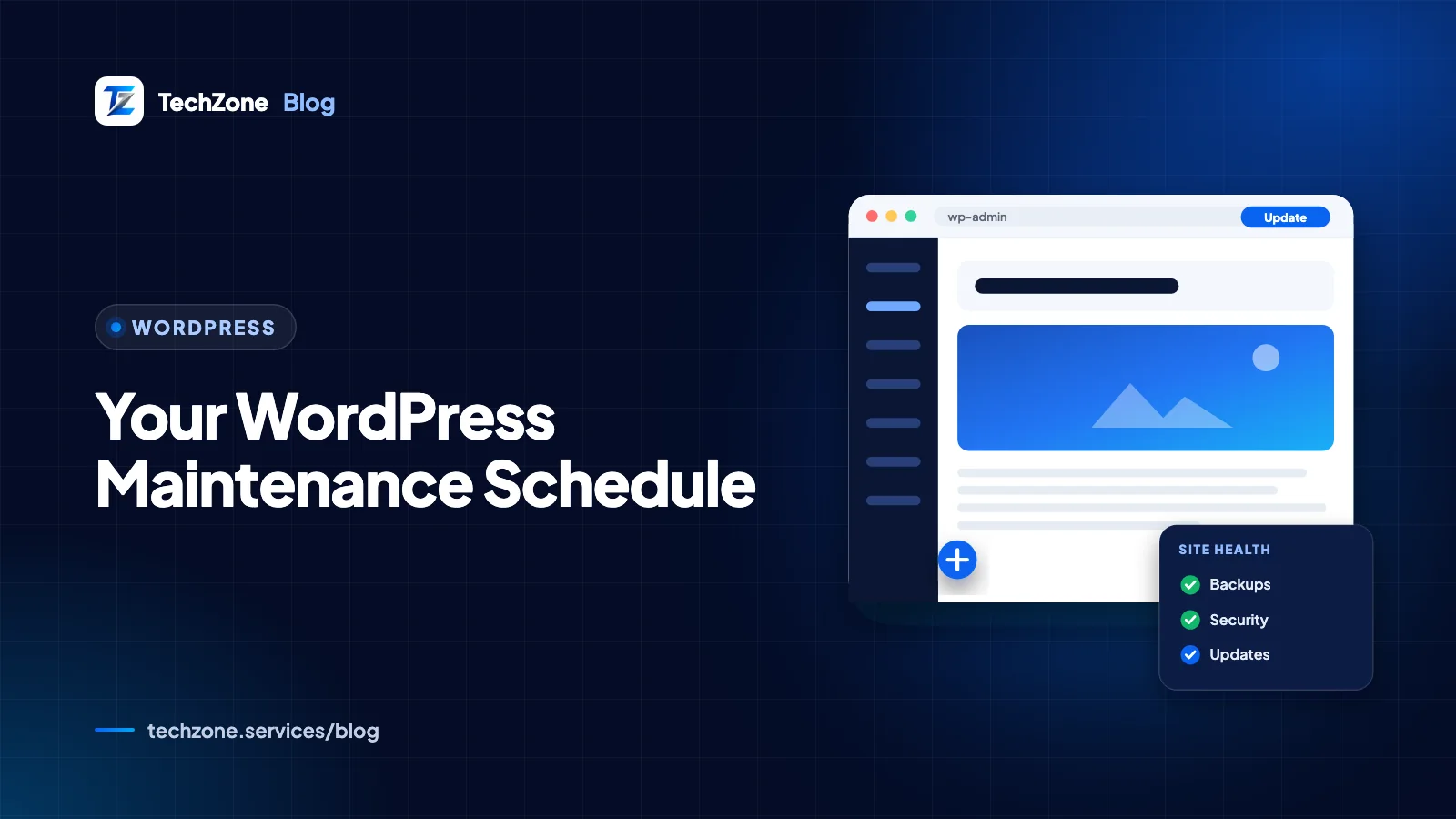
A WordPress maintenance checklist splits the work by cadence. Weekly: updates, backup checks, uptime and security alerts. Monthly: forms, speed, Search Console and broken links. Quarterly: a restore test, a user audit, database cleanup and a content review. Yearly: renewals, a PHP upgrade, a hosting review and account ownership checks.
The pace of WordPress itself is the reason a schedule matters. WordPress 7.1 shipped in August 2026, and within a month the 7.1.1 release fixed 11 security issues, with 7.2 planned for December. Plugins and themes update on their own timetables in between. A site nobody checks falls behind in weeks, not years.
This is the hub of our WordPress guides. It links to the deeper articles on security, speed and hack recovery where a task needs more than a table row, and ends with a tracker template you can paste into a spreadsheet.
Key takeaways
- Check updates, backups, uptime and security alerts weekly; everything else fits a monthly, quarterly or yearly slot.
- Back up the database and files as one set, keep several copies in different places, and test a restore every quarter.
- Test major updates, theme changes and PHP upgrades on a staging copy before they reach the live site.
- PHP 8.2 stops receiving security fixes on December 31, 2026, and WordPress.org recommends PHP 8.3 or greater.
- Give maintenance one named owner, whether that’s you, a staff member or an agency working to a written scope.
What does a WordPress maintenance checklist cover?
It covers everything that keeps a site secure, working and findable after launch: software updates, backups, security and uptime monitoring, speed, forms, links, the database, search visibility and content. The schedule below groups those jobs by how often they need doing.
| Cadence | Goal | Main tasks |
|---|---|---|
| Weekly | Keep it running | Updates, backup check, uptime alerts, security alerts, spam |
| Monthly | Keep it working | Forms and checkout, speed, Search Console, broken links, Site Health, plugin pruning |
| Quarterly | Keep it safe and tidy | Restore test, user audit, database cleanup, script review, content and SEO review |
| Yearly | Keep it current | Renewals, PHP upgrade, hosting review, account ownership, full security review |
| Before every major update | Keep it recoverable | Fresh backup, staging test, check key pages afterwards |
One setting underpins all of it: the Administration Email Address under Settings > General. WordPress sends auto-update results, plugin rollback notices and fatal-error recovery links there, and asks administrators to confirm the address every six months. Make sure it goes to an inbox someone actually reads.
Weekly and monthly WordPress maintenance tasks
Weekly tasks take a few minutes if nothing is wrong, and they catch the problems that get worse by the day. Monthly tasks check that the site still does its job for customers.
Weekly tasks
| Task | How to do it | Where |
|---|---|---|
| Apply updates | Install waiting plugin, theme and core updates; read the changelog before major version jumps and send those to staging first | Dashboard > Updates and auto-update emails |
| Check the latest backup | Confirm the most recent backup finished and a copy sits off the server | Backup plugin log or host panel |
| Review uptime alerts | Look for outages and slow responses; raise repeat incidents with your host | An uptime monitor such as UptimeRobot or Jetpack |
| Review security alerts | Check for new administrators, bursts of failed logins, malware scan results and vulnerability warnings for installed plugins | Security plugin and activity log |
| Clear spam | Empty comment and form spam, and check that real inquiries weren’t flagged | Comments screen and form entries |
WordPress applies minor core releases automatically on most sites, and plugin and theme auto-updates can be switched on one by one from the Plugins and Themes screens. By default, WordPress checks for auto-updates twice a day and emails you the results. Since WordPress 6.6, a plugin auto-update that triggers a fatal error is rolled back, but that check only catches crashes, not broken layouts, so still look at your key pages after update emails arrive.
Monthly tasks
| Task | How to do it | Where |
|---|---|---|
| Test forms and checkout | Submit every form, place a test order and confirm both the notification and the customer email arrive | Contact, quote and booking forms; WooCommerce |
| Check speed | Run your key templates through PageSpeed Insights and compare with last month | PageSpeed Insights |
| Review Search Console | Look for new indexing errors, security issues, Core Web Vitals problems and sudden drops in clicks | Google Search Console |
| Fix broken links | Update or redirect internal links to deleted pages | Search Console “Not found (404)” list or a link checker |
| Read Site Health | Resolve anything listed as a critical issue | Tools > Site Health |
| Prune plugins and themes | Delete inactive ones and flag any that have stopped receiving updates | Plugins and Appearance > Themes |
Forms deserve particular care, because a silent form failure costs leads without showing any error on screen. If emails from the site go missing, send them through an SMTP or transactional email service; the WordPress handbook advises against running a mail server on your web server. If the speed check shows a decline, our guide on how to speed up a WordPress site maps each symptom to its fix.
Quarterly and yearly WordPress maintenance tasks
Quarterly and yearly tasks are the ones that prevent slow-building problems: backups that don’t restore, forgotten logins, expired domains and PHP versions that no longer get security fixes.
Quarterly tasks
| Task | How to do it | Where |
|---|---|---|
| Test a restore | Restore a recent backup to staging and check pages, forms and logins (steps below) | Staging site |
| Audit users | Remove former staff, freelancers and agencies; lower roles where possible; confirm two-factor login for admins | Users > All Users |
| Clean the database | Delete old revisions, spam, trash and expired transients; act on any autoloaded options warning | Cleanup plugin or WP-CLI, after a backup |
| Review third-party scripts | List every tag in the theme, plugins and tag manager, and remove what nobody uses | Theme settings and Google Tag Manager |
| Review key content | Check prices, services, team, hours, contact details and dated offers; update or retire stale posts | Pages and posts |
| Check SEO basics | Confirm key pages are indexed, titles and meta descriptions are current, and the sitemap is submitted | Search Console and your SEO plugin |
The user and script reviews double as security checks. For the full set of hardening steps, including login protection, file permissions and firewalls, work through our WordPress security checklist once a year and after any major change.
Yearly tasks
| Task | How to do it | Where |
|---|---|---|
| Renew domain, hosting, SSL and licenses | Confirm auto-renewal and the payment card for each, and record expiry dates | Registrar, host and plugin vendor accounts |
| Upgrade PHP | Move to a supported version after testing on staging | Hosting control panel |
| Review hosting | Check whether the plan still suits your traffic, response times and backup needs | Host dashboard and PageSpeed Insights |
| Confirm ownership and access | Make sure the business, not only a developer, holds the registrar, hosting, Google and license logins | Account settings and a password manager |
| Run a full security and compliance review | Work through the security checklist; review the privacy policy, cookie banner and accessibility basics | Security checklist and legal pages |
PHP deserves a date in your calendar. According to PHP.net, PHP 8.2 receives security fixes only until December 31, 2026, and PHP 8.3 until December 31, 2027. WordPress.org recommends PHP 8.3 or greater, so a site on 8.2 or older should plan its upgrade now.
Pakistan note
For .pk domains, PKNIC charges fees on a biennial (two-year) basis, so a .pk renewal may fall due every other year rather than yearly. Record the exact expiry date in your tracker, and keep the registrar account in the business’s name rather than a former freelancer’s.
How do you back up a WordPress site?
Back up the database and the files as one set, automatically, and always before an update. The WordPress backup guide explains that downloading your WordPress folder does not include the database, and you need both to restore a typical site.
| Part | What it holds | Notes |
|---|---|---|
| Database | Posts, pages, settings, users, form entries and orders | Exported as a .sql file; changes most often |
| wp-content/uploads | Images, PDFs and other media | Usually the largest part |
| wp-content/themes and plugins | Your theme, child theme customizations and premium plugins | Premium plugins can’t be re-downloaded from WordPress.org |
| wp-config.php and .htaccess | Database connection, security keys, redirects and server rules | Easy to forget, painful to rebuild |
| WordPress core files | The software itself | Can be re-downloaded, but a full copy makes restores simpler |
- How often: the WordPress backup guide suggests weekly for smaller sites and daily for busy ones. A store taking orders every day needs at least daily database backups, plus one before every update.
- How many and where: the guide recommends keeping at least 3 to 5 recent backups in different locations, such as your server, cloud storage and a local computer. At least one copy should sit where the website itself can’t reach it.
- Which order: back up the database first, then the files. Restore the files first, then import the database, and update wp-config.php if the database details changed.
- Which tool: most hosts include backups, but check how long they keep them and how quickly you can restore. A backup plugin that sends copies to cloud storage adds an independent set; see our guide to essential WordPress plugins for the categories worth installing.
If you have SSH access, WP-CLI can create a manual backup before risky work. This example writes both parts with today’s date; move the files off the server afterwards, because backups left in the web folder can be downloaded by anyone who guesses the name.
# Example manual backup over SSH, run from the WordPress root
wp db export backup-$(date +%F).sql
tar -czf files-$(date +%F).tar.gz wp-content wp-config.php .htaccess
# Then copy both files to cloud storage or your computer and delete them from the server
How do you test a WordPress restore?
- Create a staging site or a local install that visitors and search engines can’t reach.
- Restore the files from a recent backup, then import the database.
- If the staging address differs from the live one, update the site URLs, for example with
wp search-replace. - Log in, then check the home page, a few inner pages, images, forms and, for stores, the cart and checkout.
- Write down the date, the backup used and how long the restore took, so you know what to expect in a real emergency.
The WordPress upgrade guide tells you to verify that backups exist and are usable before any upgrade. A quarterly test restore is the only reliable way to know. If you ever need one for real because the site was compromised, follow our hacked WordPress recovery guide before restoring, so you don’t bring back the same weakness.
Should you update WordPress on a staging site first?
Yes, for any update that could change how the site looks or works: major WordPress releases, theme and page builder updates, WooCommerce and membership plugins, and PHP upgrades. Minor security releases can go straight to live, which is why WordPress installs them automatically by default.
- Back up the live site.
- Refresh staging from live so you test against current content and settings.
- Apply updates one group at a time, starting with the riskiest.
- Test key pages, forms, checkout and logins on desktop and mobile.
- Update the live site at a quiet time and repeat the key checks.
- Keep the pre-update backup until you’re confident nothing broke.
Many hosts include one-click staging, and plugins such as WP Staging can create a copy on the same server. Whatever you use, block search engines from the staging copy and never let customers reach it.
Who should own WordPress website maintenance?
One named person should own it, even if several people help. Most owners can handle the weekly checks and content; the riskier jobs are worth handing to a freelancer or a WordPress development team unless someone on your staff has done them before.
| Task | Do it yourself if | Outsource if |
|---|---|---|
| Weekly checks and minor updates | Someone logs in every week and backups run automatically | Nobody will reliably log in weekly |
| Major updates and PHP upgrades | The site is simple, with few plugins and no custom code | The site takes payments, uses custom code or relies on many plugins |
| Backups and restore tests | Your host or plugin backs up off-site and you’ve restored before | You’ve never restored a backup and couldn’t do it under pressure |
| Speed and Core Web Vitals | Fixes are settings, such as caching and image compression | Problems are structural, such as a heavy theme or builder layouts |
| Security incidents | You follow a recovery runbook and the site holds no customer data | Payments or personal data are involved, or the infection returns |
| Content and SEO checks | You know the business best and have a monthly slot for it | You need reporting across SEO, ads and analytics |
What should a WordPress maintenance plan include?
Maintenance plans are priced by scope, so compare quotes against the same written list rather than headline prices. A useful plan states:
- How often updates run, and whether major updates are tested on staging first.
- Backup frequency, how long copies are kept, where they’re stored and how often a restore is tested.
- Uptime and security monitoring, and how quickly someone responds to an alert.
- Whether malware cleanup is included or billed separately.
- How many hours of small changes are included each month.
- What the monthly report shows, and confirmation that the business owns every account and license.
Free WordPress maintenance tracker template
Copy the lines below into a text file, save it as a .csv and open it in Google Sheets or Excel. Add an owner and dates to each row and you have a working WordPress maintenance schedule.
Cadence,Task,Owner,Last done,Next due,Notes
Weekly,Apply plugin theme and core updates,,,,
Weekly,Confirm latest backup finished and is stored off-site,,,,
Weekly,Review uptime alerts,,,,
Weekly,Review security and activity alerts,,,,
Weekly,Clear comment and form spam,,,,
Monthly,Test every form and a checkout,,,,
Monthly,Run PageSpeed Insights on key templates,,,,
Monthly,Review Search Console reports,,,,
Monthly,Fix broken links and 404s,,,,
Monthly,Resolve Site Health critical issues,,,,
Monthly,Delete inactive plugins and themes,,,,
Quarterly,Test a full restore on staging,,,,
Quarterly,Audit user accounts and two-factor login,,,,
Quarterly,Clean the database after a backup,,,,
Quarterly,Review third-party scripts,,,,
Quarterly,Review key content and SEO basics,,,,
Yearly,Renew domain hosting SSL and licenses,,,,
Yearly,Upgrade PHP to a supported version,,,,
Yearly,Review hosting plan,,,,
Yearly,Confirm account ownership and admin email,,,,
Yearly,Run the full security checklist,,,,
How TechZone can help
TechZone builds and maintains WordPress sites for businesses in Pakistan, the UK, the UAE, the USA, Canada and Australia. We can run this schedule for you, including staging-tested updates, off-site backups with regular restore tests, monitoring and a plain-English monthly report, or set it up so your own team can run it. Every engagement starts with a written scope, so you know exactly what’s covered. See our WordPress development and maintenance services, or book a free 30-minute consultation to talk through your site.
Frequently asked questions
How often should a WordPress site be updated?
A WordPress site should be checked for updates at least weekly. Minor WordPress security releases install automatically on most sites, and plugin and theme auto-updates can be turned on for well-maintained plugins. Major WordPress releases, page builder updates and WooCommerce updates are safer after a staging test. Security releases should be applied as soon as they appear.
Is WordPress maintenance necessary for a small website?
WordPress maintenance is necessary even for a small website, because attackers scan for outdated plugins automatically, whatever the size of the site. A small WordPress site still needs updates, backups and a monthly form test. The workload is lighter than for a store or membership site: a short weekly check and a longer quarterly session cover most small sites.
What happens if I don’t maintain my WordPress site?
An unmaintained WordPress site gradually runs outdated plugins with known vulnerabilities, drifts onto unsupported PHP versions and collects broken forms and links nobody notices. Hacks, lost leads and failed updates become more likely over time. Restoring or rebuilding a neglected WordPress site can cost more than the routine maintenance it skipped.
Can I turn on auto-updates for every WordPress plugin?
You can turn on auto-updates for every WordPress plugin, but it is safer to enable them selectively. Well-maintained plugins with small, frequent releases are good candidates. Page builders, WooCommerce and plugins that change how pages render are better updated manually after a backup and a staging test, because WordPress only rolls back auto-updates that cause a fatal error.
Does my web host handle WordPress maintenance?
Most web hosts handle the server, not your WordPress site. A standard hosting plan typically covers the hardware, server software and sometimes backups, while plugin updates, form tests and content checks stay with you. Managed WordPress hosting often adds core updates, backups and malware scanning. Check your plan’s terms to see exactly which WordPress maintenance tasks the host covers.
Sources and further reading
- Backups – WordPress Advanced Administration Handbook
- Upgrading WordPress – WordPress Advanced Administration Handbook
- Plugin and themes auto-updates – WordPress.org Documentation
- Version 6.6 – WordPress.org Documentation
- WordPress 7.1.1 Maintenance and Security Release – WordPress News
- Supported Versions – PHP.net