
To verify an internship certificate, open the issuing company’s official website yourself, find its certificate verification page, and enter the certificate ID printed on the document. Check that the name, program and dates match the candidate’s CV. If the company has no online check, confirm by email or phone using contact details from its official site.
A certificate is a PDF, and a PDF can be edited in minutes. The document itself proves little; the issuer’s own records prove a lot. A quick check protects employers, admissions teams and honest interns alike, because a certificate that verifies cleanly carries far more weight than one nobody can confirm.
This guide covers the checks that work for any issuer, walks through verifying a TechZone internship certificate step by step, and ends with what interns can do to make their own certificate easy to check.
Key takeaways
- Reach the issuer through its official website, typed in yourself, never through a link or phone number printed on the certificate.
- A QR code proves nothing on its own; confirm it opens a page on the issuer’s real domain, spelled exactly right.
- Match the certificate’s name, program and dates against the candidate’s CV and LinkedIn profile before treating it as confirmed.
- TechZone certificates are checked at techzone.services/certificate-verification/ using an ID like TZ-2026-WEB-7K3Q9P, with three possible results.
- Interns should add the direct verification link to their CV and LinkedIn so reviewers can confirm the certificate in one click.
How do you verify any internship certificate?
Verify any internship certificate against the issuer’s own records, not against anything printed on the certificate. In practice that means five checks, in this order:
- Identify the issuer. Note the company name, the certificate ID and the dates. If there is no ID at all, treat that as your first warning sign.
- Find the official website yourself. Search for the company or type its known domain. Do not rely on a URL printed on the certificate, because whoever made the certificate controls everything on it.
- Look for a verification page. Organizations that issue certificates often provide an online lookup, usually linked from the footer, the internship page, or a page named something like Certificate Verification.
- Enter the ID or scan the QR code. Compare every field the lookup returns with the certificate in front of you.
- Cross-check the story. The dates, track and role should match the candidate’s CV, their LinkedIn profile and what they tell you in the interview.
If step 3 turns up nothing, move to direct contact, covered below. If the company itself cannot be found, with no working website and no footprint beyond the certificate, you are no longer checking a certificate. You are checking whether the issuer exists.
How do you check a certificate’s QR code or verification link safely?
Scan the code, then read the full web address before you trust the page it opens. The domain must be the issuer’s real domain, spelled exactly right, not a lookalike.
Anyone can generate a QR code that points to any web address, including a convincing copy of a verification page. The FBI’s Internet Crime Complaint Center (IC3) advises checking the URL after scanning to make sure it is the intended site, and the FTC warns that spoofed addresses often hide a misspelling or a switched letter. The same logic applies to a “verify here” link inside a PDF or an email.
- Check the exact domain. The part that matters is the domain just before the first single slash. In
techzone.services.verify-cert.net/check, the real domain isverify-cert.net, not TechZone. Everything to the left of it can be made up. - Watch for near-misses. Extra hyphens, swapped letters, a different ending (
.cominstead of.services, for example) or an added word such as “verify” or “official” are all signs of a lookalike. - Don’t treat the padlock as proof. HTTPS means the connection is encrypted. It says nothing about who owns the site.
- Repeat the check by hand. For extra certainty, type the issuer’s domain yourself, open its verification page and enter the ID manually. The result should match what the QR code showed.
What if the issuer has no online verification page?
Contact the issuer directly, using an email address or phone number you find on its official website. Never rely on contact details printed on the certificate itself.
This is the step forgers count on you skipping. The FTC’s guidance for employers on fake credentials notes that some diploma mills run their own “verification service” that will vouch for a phony record to anyone who calls. A fake internship certificate can pull the same trick with a free email address or a mobile number the forger answers. CISA gives matching advice for suspicious messages: get the organization’s contact information from its verified website.
Keep your request short and specific:
- The certificate ID and the intern’s full name as printed
- The program or track, and the start and end dates
- A plain question: “Did you issue this certificate, and is it still valid?”
- A copy of the certificate, if the issuer asks for one
Some companies reply with a simple yes or no, and some may want the candidate’s consent before confirming anything. If you get no reply, ask the candidate for other evidence, such as a supervisor you can reach through the company’s official channels, or samples of the work they did.
What are the red flags of a fake internship certificate?
The strongest red flag is a certificate you cannot confirm through the issuer’s official website or contacts. Any one of the signs below may have an innocent explanation; several together should stop you from accepting the certificate at face value.
- No certificate ID, or an ID that follows no visible pattern and cannot be looked up anywhere.
- A lookalike domain in the QR code, footer or contact email, or a free email provider where a company domain should be.
- A generic template with nothing company-specific: stock design, no track or role named, and vague wording such as “for outstanding performance”.
- An unverifiable company with no working website, no independent way to contact it, or a site that seems to exist only to host certificates.
- Mismatched details: dates that clash with the CV, a duration that doesn’t fit the stated program, or a name spelled differently from the candidate’s other documents.
- Signs of editing, such as fonts or alignment that shift around the name and dates, or a blurred patch around text that should be sharp.
Lookalike names are an old trick. The FTC’s employer guidance flags institutions with names that imitate well-known ones, and the same tactic now shows up in web domains and email addresses.
How do you verify a TechZone internship certificate?
Go to techzone.services/certificate-verification/, enter the Certificate ID printed on the certificate, and read the result. The page confirms whether TechZone issued the certificate and whether it is still valid.
Where to find the Certificate ID
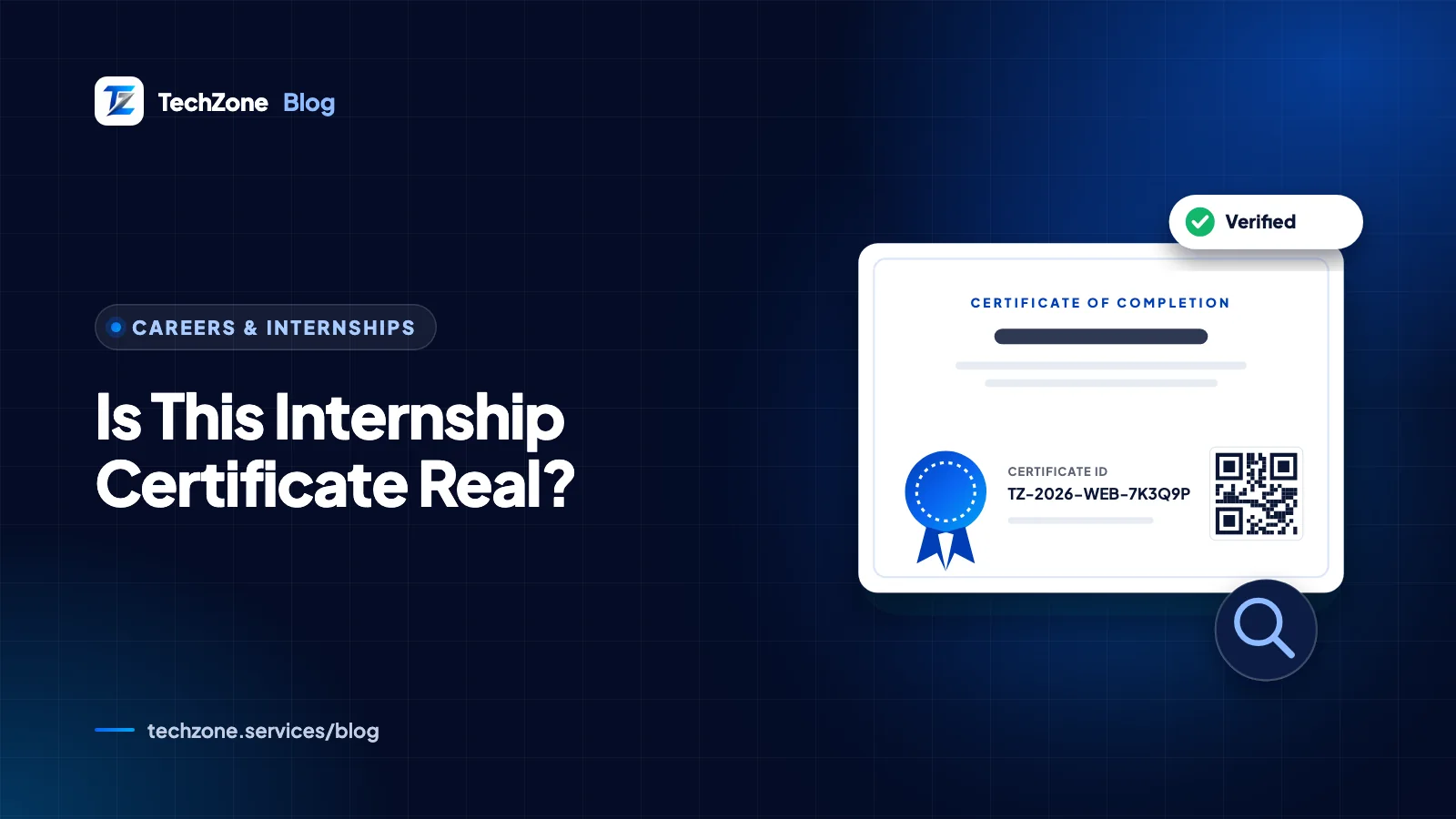
Every certificate issued at the end of TechZone’s virtual internship program carries a unique Certificate ID, printed next to the QR code. IDs follow one format, for example TZ-2026-WEB-7K3Q9P:
TZ: the TechZone prefix2026: the yearWEB: the track code, one of WEB, APP, PY, AI, UX, DM, EC, DA, CR or BD7K3Q9P: a 6-character code unique to that certificate
Step-by-step: checking the certificate
- Open the TechZone certificate verification page. Type the address yourself or follow the link from techzone.services; the same domain rule applies here as anywhere else.
- Enter the Certificate ID exactly as printed, including the hyphens, for example
TZ-2026-WEB-7K3Q9P. - Submit, then read the status at the top of the result: Verified, Revoked or Certificate not found.
- For a Verified or Revoked result, compare the details shown (certificate ID, name, internship program, duration, and the start, end and issue dates) with the certificate and the candidate’s CV.
- If you scanned the QR code instead, confirm the page that opened is on
techzone.services. A direct verification link has this format:https://techzone.services/certificate-verification/?cert_id=TZ-2026-WEB-7K3Q9P. - If anything doesn’t match, or you have a question about a specific certificate, email info@techzone.services.
What do the three results mean?
| Result | What it means | What to do next |
|---|---|---|
| Verified | TechZone issued this certificate and it is valid. The page shows the certificate ID, name, internship program, duration, and start, end and issue dates. | Check that every detail matches the certificate and the CV. If everything lines up, the certificate is genuine. |
| Revoked | TechZone issued this certificate, but it is no longer valid. | Do not treat it as a current credential. Email info@techzone.services if you need clarification. |
| Certificate not found | No certificate with that ID exists in TechZone’s records. | Re-check the ID for typos such as O and 0, or I and 1, and missing hyphens. If it still fails, ask the candidate to confirm the ID or email info@techzone.services. |
Privacy and rate limits
The result shows certificate details only. No email address or other personal details appear, so an intern can share the link without exposing their contact information.
Lookups are rate-limited. If you see a message about too many attempts, wait a few minutes before trying again.
How can interns make their certificate easy to verify?
Give reviewers the direct verification link, not just the PDF. A link that opens a Verified result on the issuer’s own domain answers the question before anyone has to ask it.
- Put the link on your CV. Add a line under the internship entry or in a Certifications section, such as Certificate ID TZ-2026-WEB-7K3Q9P, verifiable at techzone.services/certificate-verification/, and hyperlink it to your direct link. Our resume tips for students with internship experience show where it fits.
- Add it to LinkedIn. Use the Licenses & certifications section of your profile, and include the certificate ID and the verification link so recruiters can check it from your profile.
- Keep the ID handy. Save it where you can copy it quickly. Application forms, university credit requests and interviewers may all ask for it.
- Never edit the certificate. If your name is misspelled or a date looks wrong, contact the issuer (for TechZone, info@techzone.services). An edited PDF will not match the verification record, and a mismatch looks far worse than a typo.
- Test your own link. Open it in a private browser window before you send it, so you know exactly what a recruiter will see.
The certificate proves you finished; the work behind it is what interviewers will ask about. Our guide on how virtual internships build real work experience covers how to talk about that work.
How TechZone can help
If you’re reviewing a TechZone certificate, the quickest route is the certificate verification page: enter the ID and compare the result with the candidate’s CV. For anything the page doesn’t answer, email info@techzone.services. If you’re a student, recent graduate or career changer who wants structured, mentor-reviewed work to show employers, our virtual internship program runs 8 to 12 weeks across ten tracks, with written feedback on every submission and a verifiable certificate at the end.
Frequently asked questions
Can a QR code on an internship certificate be faked?
Yes. Anyone can create a QR code that opens any web address, including a copy of a real verification page hosted on a lookalike domain. A QR code on an internship certificate is only useful if it opens a page on the issuer’s genuine domain. When in doubt, type the issuer’s website address yourself and enter the certificate ID manually.
Is an internship certificate the same as an experience letter?
No. An internship certificate confirms that someone completed a program, usually with the dates and the track or role. An experience letter or reference letter describes the work itself and is typically written by a supervisor. Employers who want detail on a candidate’s skills should ask for a reference or work samples in addition to verifying the internship certificate.
How long does it take to verify an internship certificate?
Verifying an internship certificate through an online lookup is usually quick, because the result appears as soon as the certificate ID is entered. Verification by email or phone depends on how fast the issuing company replies, so employers with a hiring deadline should ask candidates for the certificate ID up front and start the check early.
What should an intern do if their TechZone certificate shows “Certificate not found”?
An intern whose TechZone Certificate ID returns “Certificate not found” should first re-enter the ID exactly as printed, including the hyphens, and check for easily confused characters such as O and 0. If the TechZone verification page still shows no match, the intern should email info@techzone.services with a copy of the certificate and ask the team to check the record.
How do you verify a certificate from a company that has closed?
Verifying an internship certificate from a company that has closed is often impossible through the issuer, because its website and records may no longer exist. In that case, ask the candidate for supporting evidence: a former supervisor you can confirm independently, work samples, and consistent details across their CV and LinkedIn profile. Then weigh the certificate accordingly.
Sources and further reading
- Avoid Fake-Degree Burns By Researching Academic Credentials — Federal Trade Commission
- Scammers hide harmful links in QR codes to steal your information — FTC Consumer Advice
- Cybercriminals Tampering with QR Codes to Steal Victim Funds — FBI Internet Crime Complaint Center (IC3)
- Recognize and Report Phishing — CISA
- Add sections to your profile — LinkedIn Help